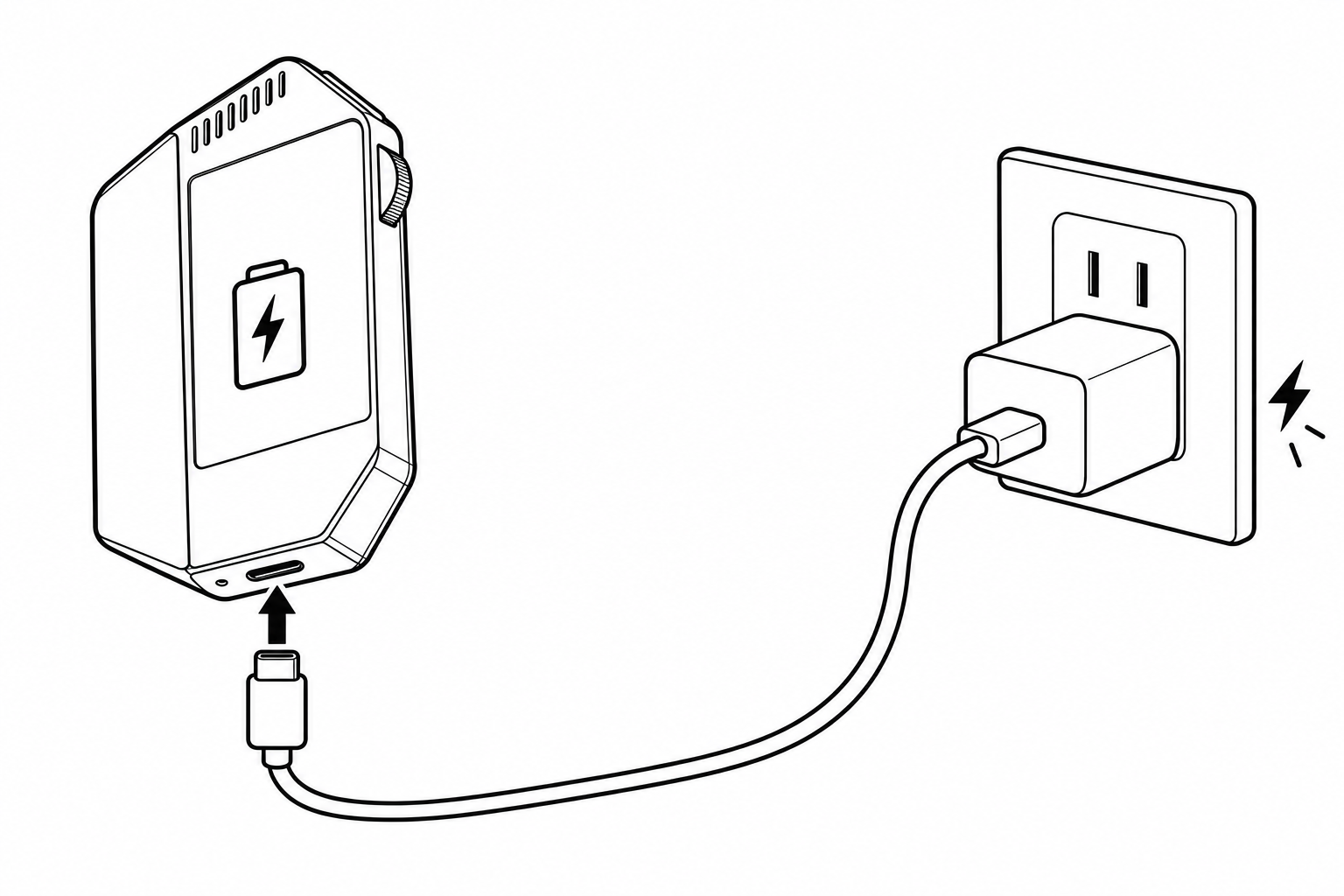
1. 插电激活主机Activate your device
首次使用前,用 USB-C 线连接主机和已通电的 USB 电源,完成激活。额定充电输入为 。Before first use, connect the device to a powered USB charger with a USB-C cable to activate it. Rated charging input: .
 产品支持Support
连接设备,开始使用 WhisPrompt。Connect your device and get started with WhisPrompt.
准备好主机、随箱接收器、USB-C 线和电脑,依次完成以下步骤。Have your device, supplied receiver, USB-C cable, and computer ready, then follow these steps.
首次使用前,用 USB-C 线连接主机和已通电的 USB 电源,完成激活。额定充电输入为 。Before first use, connect the device to a powered USB charger with a USB-C cable to activate it. Rated charging input: .
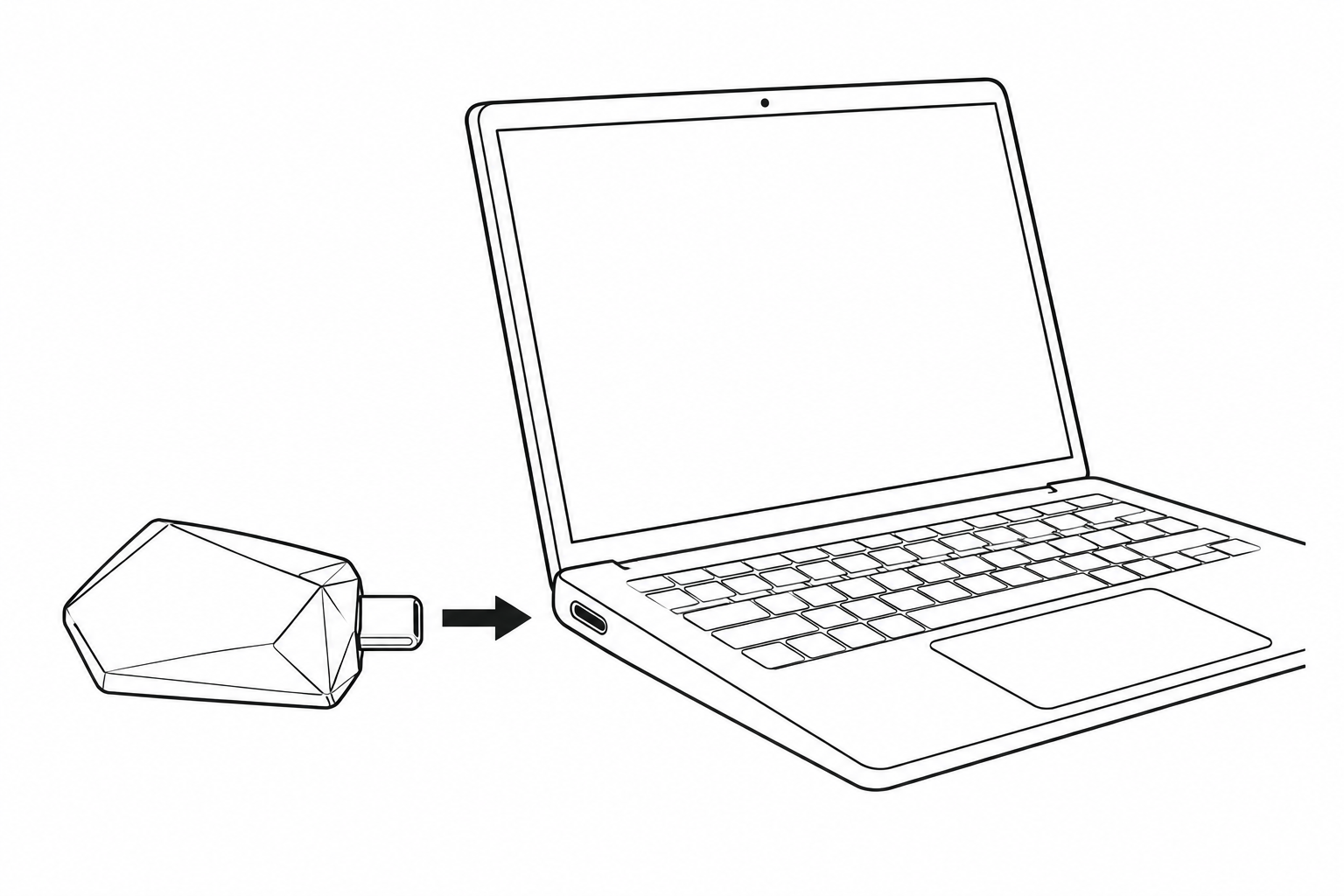
将随箱接收器(Dongle)插入电脑支持数据传输的 USB-C 接口,配置和使用时保持连接。Plug the supplied receiver (Dongle) into a data-capable USB-C port on your computer. Keep it connected during setup and use.
选择适合电脑系统的客户端。安装并打开后,登录账号,按提示完成权限和设备配置。Choose the app for your computer. Install and open it, sign in, then follow the prompts to set up permissions and your device.
前往下载页Go to Downloads点击电脑上的输入框,按客户端提示启动语音输入。说一句短话,结束输入后,检查文字是否出现在输入框中。具体按键以客户端当前配置为准。Click a text field on your computer and start voice input using the controls shown in the app. Say a short sentence, finish input, then check the text in the field. Follow your current button settings.
没有出现文字?No text appearing?macOS 客户端操作演示,涵盖登录、语音输入和功能配置。视频含中文讲解与字幕。A walkthrough of sign-in, voice input, and settings in the macOS app. Audio and captions are in Chinese, regardless of the site language.
当前没有可内嵌的视频。你仍可阅读本页文字教程;如有视频链接,也可直接打开。An embedded video is currently unavailable. You can follow the written steps on this page, or open the video link when provided.
需要。配置和使用时,请将接收器保持连接在电脑支持数据传输的 USB-C 接口上。Yes. Keep the receiver plugged into a data-capable USB-C port on your computer during setup and use.
根据电脑系统选择:Windows 11 x64(不支持 ARM),或搭载 Apple M 系列芯片的 Mac。系统和处理器的确认方法可在下载页查看。Choose according to your computer: Windows 11 x64 (not ARM), or a Mac with an Apple M-series chip. See Downloads for how to check your system and processor.
前往下载页Go to Downloads确认已通过 USB-C 插电激活主机,且 Dongle 插在电脑支持数据传输的 USB-C 接口上。Make sure you have activated the device with USB-C power and connected the Dongle to a data-capable USB-C port on your computer.
打开客户端,确认已登录,并完成界面要求的权限与设备配置。Open the app, make sure you are signed in, and complete the permissions and device setup it requests.
先用鼠标点击目标输入框,再按客户端提示重试一次简短的语音输入。Click the intended text field, then try another short voice input using the app’s instructions.
以客户端当前显示和你的按键配置为准。视频用于演示操作流程,按键绑定可以随配置改变。Follow the controls shown in your app and your current button settings. The video demonstrates the workflow; button assignments can change with your configuration.